Client Protocols
RouteMaster VR supports multiple simultaneous client connections, using multiple protocols. To choose and configure the protocols, select Configure Clients from the Settings menu.
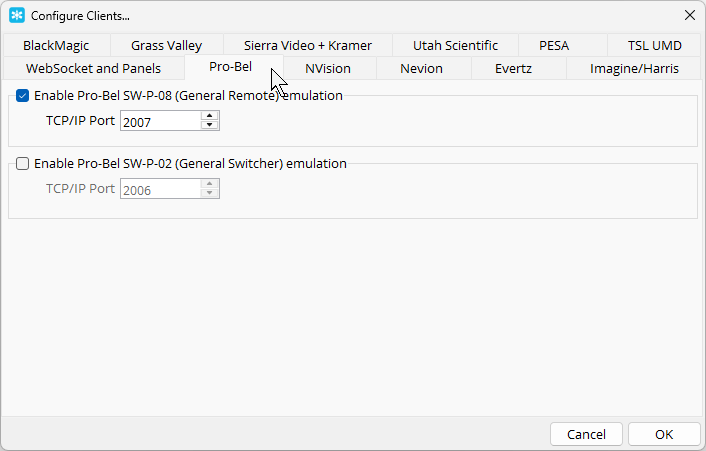
You'll see a dialog with separate tabs for each protocol group, and individual checkboxes to enable each protocol. The TCP/IP port number used for each protocol can also be configured.
Note that you can only modify the setting here when the RouteMaster VR engine is not running. changes take effect when the engine is restarted.
Certain protocols have additional options for configuration.
WebSocket Protocol
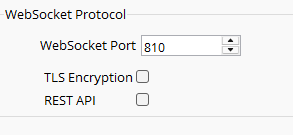
For WebSSocket protocol, TLS encryption can be enabled. You can enable TLS Encryption for this protocol, which will use a PEM-encoded certificate and private key from the files cert.pem and key.pem in RouteMaster VR's installation directory. RouteMaster VR installs a self-signed certificate, but you should replace these with one correctly issued for your server to avoid seeing warnings in any browser or client that verifies the certificates.
If the system is licensed for API control, a REST API for router control can also be enabled on this port.
Because the WebSocket protocol is used internally RouteMaster VR, it is permanently enabled.
Leitch Pass-thru
Some clients require a login prompt to be shown when they connect. If you enable this option, the client will be prompted to enter a username and password. The username and password entered are accepted but ignored.
Evertz/Quartz
Magnum Mode sends modified responses for compatability with Evertz Magnum systems.