Logging
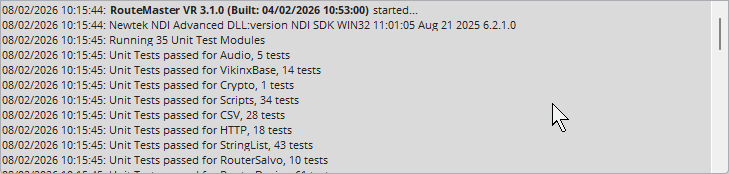
RouteMaster VR logs information to help diagnose problems. To view logs from the Application UI, use the Settings/View Log menu item.
This command shows and hides the log window at the bottom of the screen.
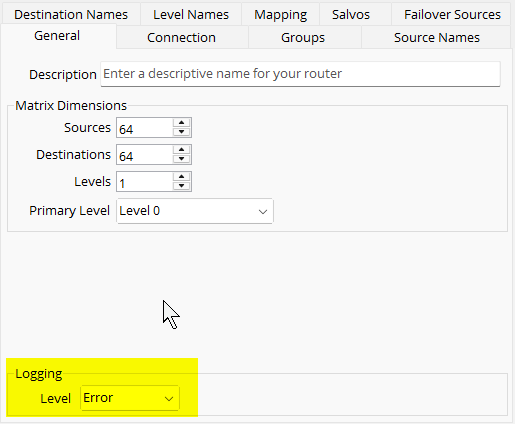
The Logging Level control the amount of information logged. It's set in the General tab of the Router Settings dialog.
Crosspoint Logging
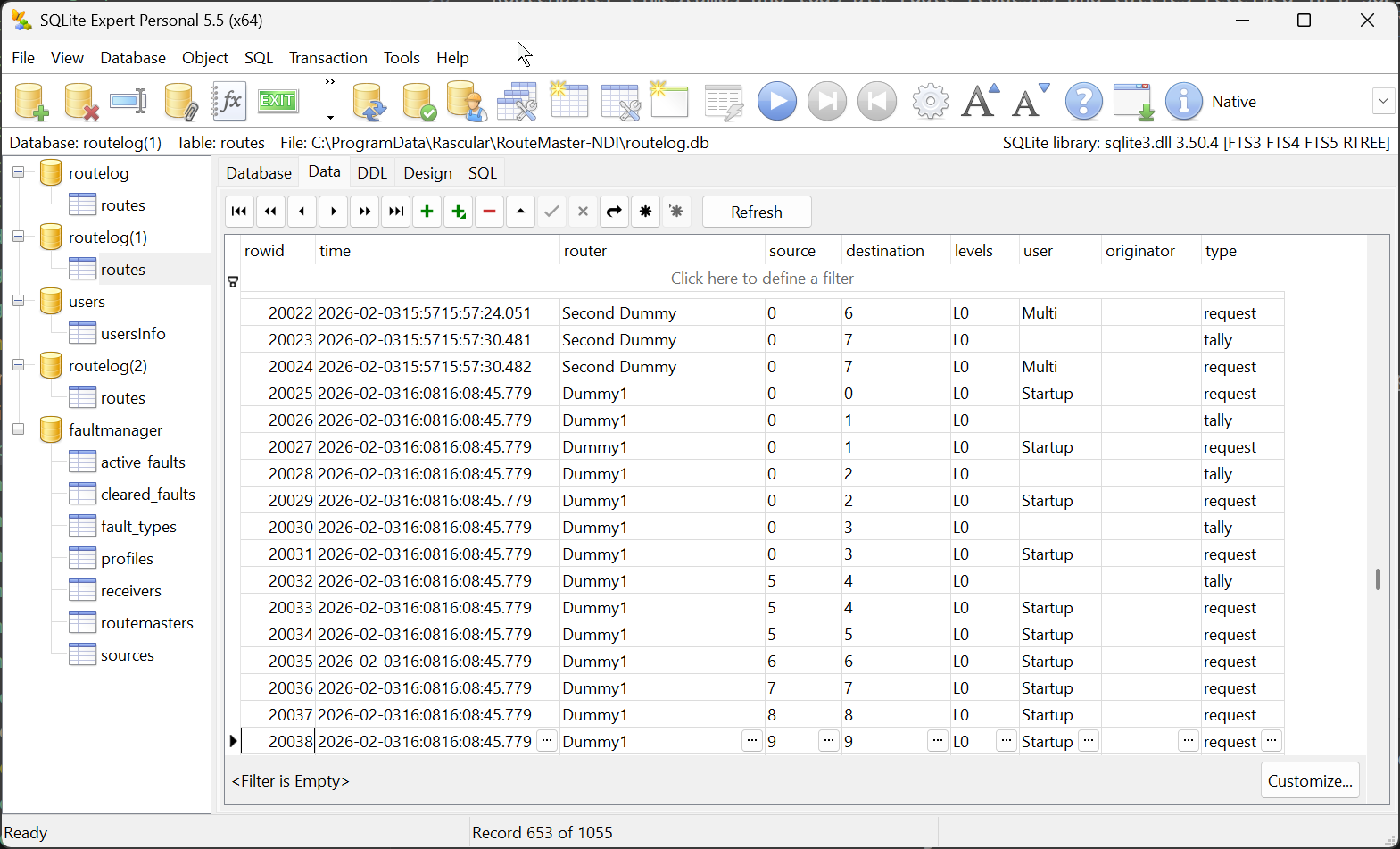
RouteMaster VR also logs all route requests and tallies received in a SQLite database, which can be found in C:\ProgramData\Rascular\RouteMaster VR\routelog.db. Each entry is timestamped, and includes the source and destination of the route request, and the client that made the request.
RouteMaster VR will automatically purge logs older than a week.
We recommend using SQLite Expert to inspect the log database.
Log files
RouteMaster VR saves log information to disk.
!!!important "Log files in V3.2.0 and later" The location and format of log files has changed in V3.2.0 and later
Log files are typically located in C:\ProgramData\Rascular\RouteMaster VR\logs
Log files are in JSON format, and include the file date and a sequence number as part of the filename. Log files roll over automatically at the start of each day, also when the file size exceeds 10MB. Older log files are not automatically deleted. Each message is timestamped and includes the severity level and message text.
If running RouteMaster VR as a Windows Service, logs will be stored in this directory:
C:\ProgramData\Rascular\RouteMaster VR (SERVICE)\logs
You can use the Log Viewer to view any JSON log file.
Versions of RouteMaster VR before 3.2.0
Log files are simple HTML files and can be viewed in any Web Browser. A new file is created each time the program runs, and they are numbered sequentially.
When running as a normal application, log files are stored in C:\Users\**USERNAME**\AppData\Roaming\Rascular\RouteMaster VR\logs
Replace USERNAME with the name of the logged-in Windows user.
When running as a Windows service, logs and settings files will be stored inC:\Windows\SysWOW64\config\systemprofile\AppData\Roaming\Rascular\RouteMaster VR
This can be changed using the -f command-line option for the service.
Crash Reports
If a RouteMaster VR crashes for any reason, a crash report should be created. This is a file called bugreport.txt and should be found in the following location, which is different from the log location above.
C:\Users\**USERNAME**\AppData\Roaming\RouteMaster VR\bugreport.txt