General Settings
Overview
To configure the routers connected to the system, select Configure Router from the Settings menu.
RouteMaster VR can be configured to multiple routers. The left-hand pane of the Router Configuration window allows you add and delete routers.
Your license determines the number of physical routers you can control. A physical router is either an external router, such as a Blackmagic Videohub, or - for RouteMaster VR - an internal virtual NDI router. Dummy Routers, Stack Routers and MultiRouters do not count towards your license - but the physical routers used to build them do.
Dummy Routers
The Dummy Router is a virtual router that's built in to RouteMaster VR. The Dummy Router behaves like a real router - it generates tallies when a route is made, and can be configured with names, groups and salvos. It's useful when testing the system, building control panels and developing client software when a real router is not available.
To add a Dummy Router, click the Add Router button, and select Dummy Router from the dropdown.
Adding Routers
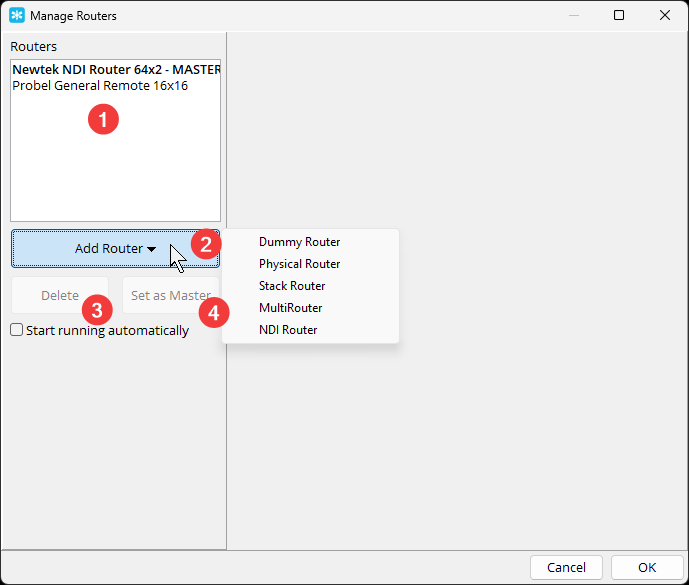
- A list of configured routers is shown at the top left. Selecting a router from the list will show its configuration to the right.
Add Router- Click to add a router, then select the router type from the dropdown menu. The new router will be added to the list, and its configuration will be shown on the right.Delete- Removes the selected router .Set as Master– Sets the selected router as the Master Router. This is the router actually controlled by clients.
To start setting up your router, you add them to the Routers list. Click the Add Router button and select Physical Router to add a new router. By default the router is configured using Pro-Bel General Remote (SW-P-08) protocol. You can change the protocol from the Connection tab. Select it from the listto display the router configuration tabs.
Configuring the Size
Regardless of the kind of router you add, the first steps are:
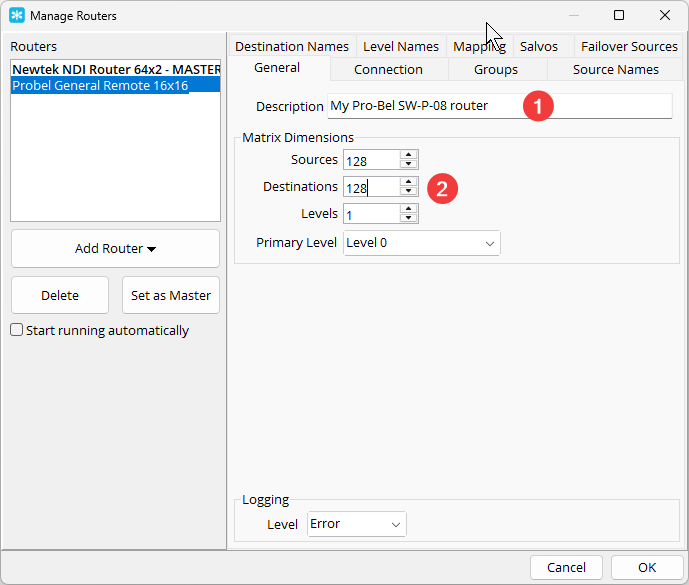
- Provide a short descriptive name for it.
- Specify the actual size of the router you're controlling.