Connection Settings
After adding a physical router to RouteMaster VR, you must specify the connection parameters
From the Protocol dropdown, select the protocol required to connect to the router. Your router's documentation will have information about available protocols and how to configure the router to accept them. RouteMaster VR can control routers using the protocols shown here
!(images/connection-settings/Pasted-52.png)
Further options will be displayed, depending on the protocol selected. The most common ones are
- TCP/IP address and port number. The
Defaultbutton will select the most commonly used port for the protocol, but you should check this with your router's documentation. - COM Port settings. If your router requires an RS-422/232 connection, you can specify the settings here. All COM ports installed in Windows will be available, including USB and Ethernet-based COM ports.
Leitch Pass-through, Nevion Sublime
Some routers implementing these protocols require a username and password. User credentials are entered here.
!(images/connection-settings/image.png)
NVision NV9000
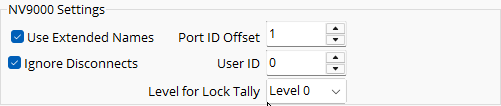
- Extended Names: Requests extended length UTF-8 names from the router, rather than the 8-character ASCII names.
- Port ID Offset: Some NV9000 implementations use port numbering from one internally, others from zero.
- User ID: When locking and protecting destinations,a User ID is sent with commands, allowing the router to track the current owner. The User Id needs to be configured within the NV9000 system and entered here.
- Level for Lock Tally: Unlike other protocols, NV9000 allows individual levels to be locked, rather than the whole destination. RouteMaster VR doesn't support this, but this option allows you to select which NV9000 level RouteMaster VR uses to determine if a destination is locked.
- Ignore disconnects:
Note
Some NV9000 options are only accessible via the Web UI.
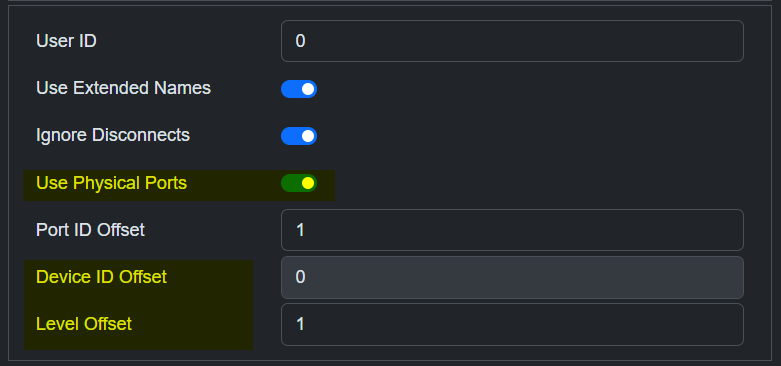
- Use Physical Ports: By default, RouteMaster VR uses PHysical port numbers when controlling the router. For some systems, it's necessary to use Device ID's for control instead. Disabling the use of physical ports will switch to using Device ID's.
Be aware that Device ID's are not always sequential and you may need to configure the router as a significantly larger size in order to view and locate the required Device ID's.
- Device ID Offset: Like Port ID Offset, but for Device ID's. Most NV9000 implementations use Device Numbering from zero.
- Level Offset: Again, some NV9000 implementations use level numbering from one, others from zero.
NewTek NDI™
TBC.
Pro-Bel SW-P-08

- Matrix Number: Some Pro-Bel systems support multiple matrices on the same control port. A matrix number (0-15) can be entred here. The default value is zero.
- Use Tally Dump: If enabled, RouteMaster VR will send Tally Dump commands to the router when it connects. This retrieve the current state of all destinations with a single message, rather than sending one message per destination. Disabling this option will slow the initial connection time, but may be necessary for some routers.
- Name Length: As the Pro-Bel protocol has evolved, it's increased the maximum length of source and destination names. Some older routers may not support the longer names, so you can specify the requested length here. The original short(4), medium (8) and long(12) names have been extended to 16 and 32 characters on newer systems.