Installation
RouteMaster VR is supplied as a standard Windows installable program. It can be downloaded directly from our support website.
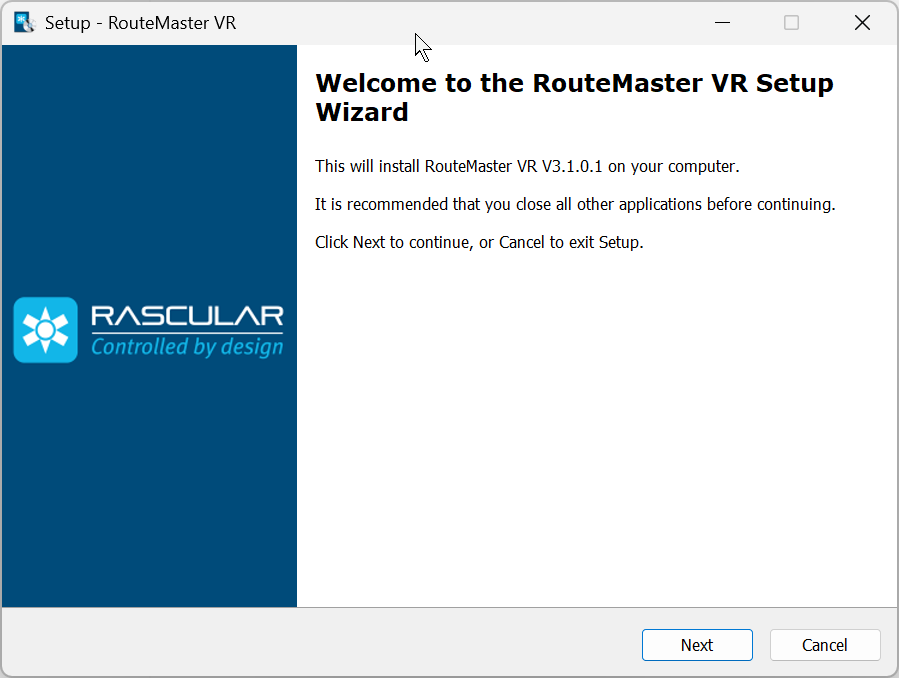
When RouteMaster VR is first installed, it operates as an evaluation copy. This lets you view all of the screens and dialogs, but you cannot configure physical routers. You must install a license to control routers. For evaluation, you can configure and control a Dummy Router, allowing you to experiment with the system.
License Installation
With your purchase, you will receive a license file by email from Rascular. To install the license, place this file in the same directory as your copy of RouteMaster VR. This is typically C:\Program Files (x86)\Rascular\RouteMaster VR.
When you install a RouteMaster VR license, the software operates fully. The number and size of allowed routers and clients depends on the licenses installed.
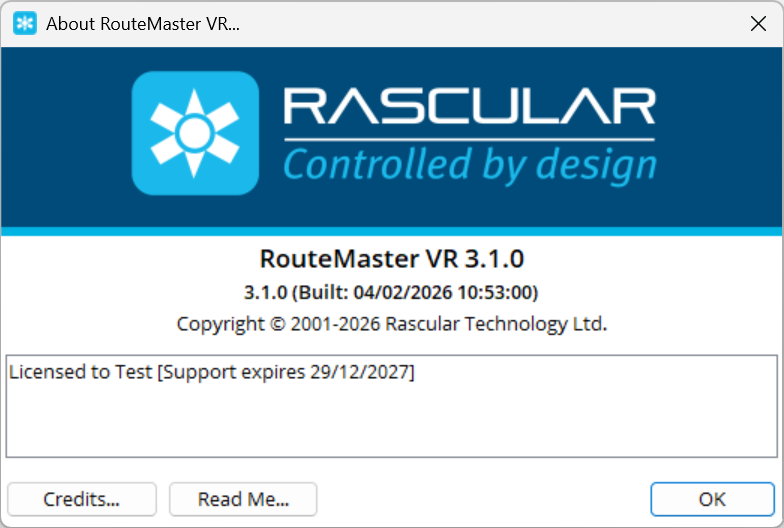
You can check if your version is correctly licensed in the About Box, which displays license information. If you have a temporary license installed, it shows the expiry date.
Installation Choices
Since V2.4.5, RouteMaster VR can be installed in three different modes:
- Desktop: As a standalone desktop application
- Service: As a Windows Service
- Remote: As a desktop GUI that connects to a remote service
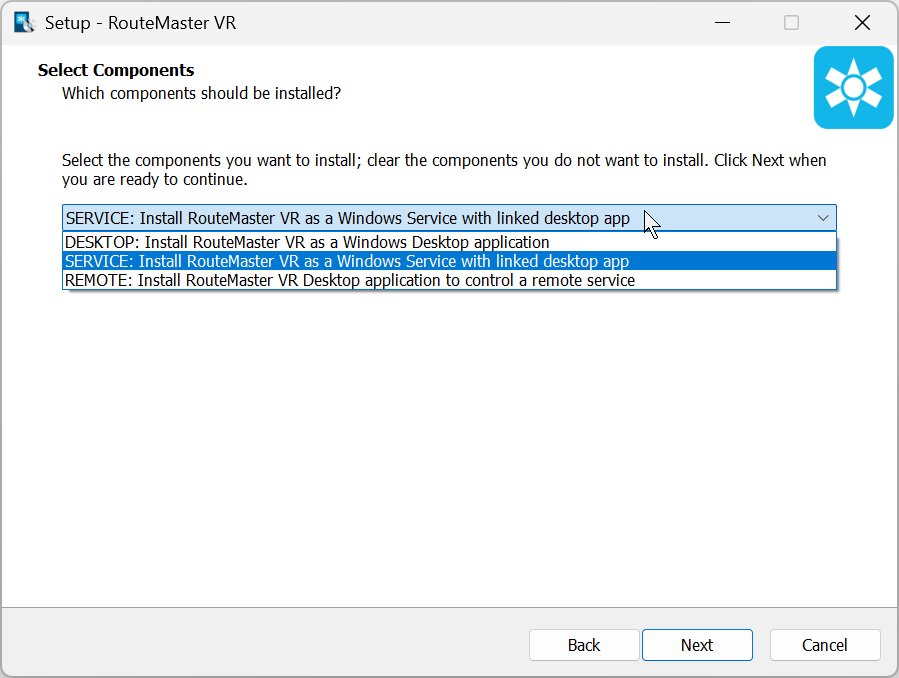
Previously, the installer would always install the desktop application, and it could be configured manually to operate as a service.

Desktop mode
- Engine and GUI are part of the same executable, and communicate internally using an ephemeral TCP/IP Port.
- When the desktop application is closed, the engine stops running and clients are disconnected.
Service mode
- The engine service runs as soon as Windows starts, and will automatically restart in the event of a crash.
- A desktop application is installed which connects to the engine.
- Closing the desktop application does not affect the engine.
- Running the desktop application requires a free client license
- You must specify a TCP/IP port number for use with the REST API. The default is 7777. Use the same port number if you subsequently install a Remote instance on a second PC.
Remote mode
- No engine is installed in this mode.
- The host name and port number of the remote system must be entered during installation.
- Closing the desktop application does not affect the engine.
- Running the desktop application requires a free client license.
Unattended Installation
If you’re deploying software on VM’s it can be useful to install software packages using scripts or batch files, without the need for manual intervention.
Because Rascular products are built using the Inno Setup installer, you can use its command-line options to control the installation process. For unattended installs the /SILENT and /VERYSILENT options are most relevant.